What You Get With an Outlook Trusted OAuth2 Account
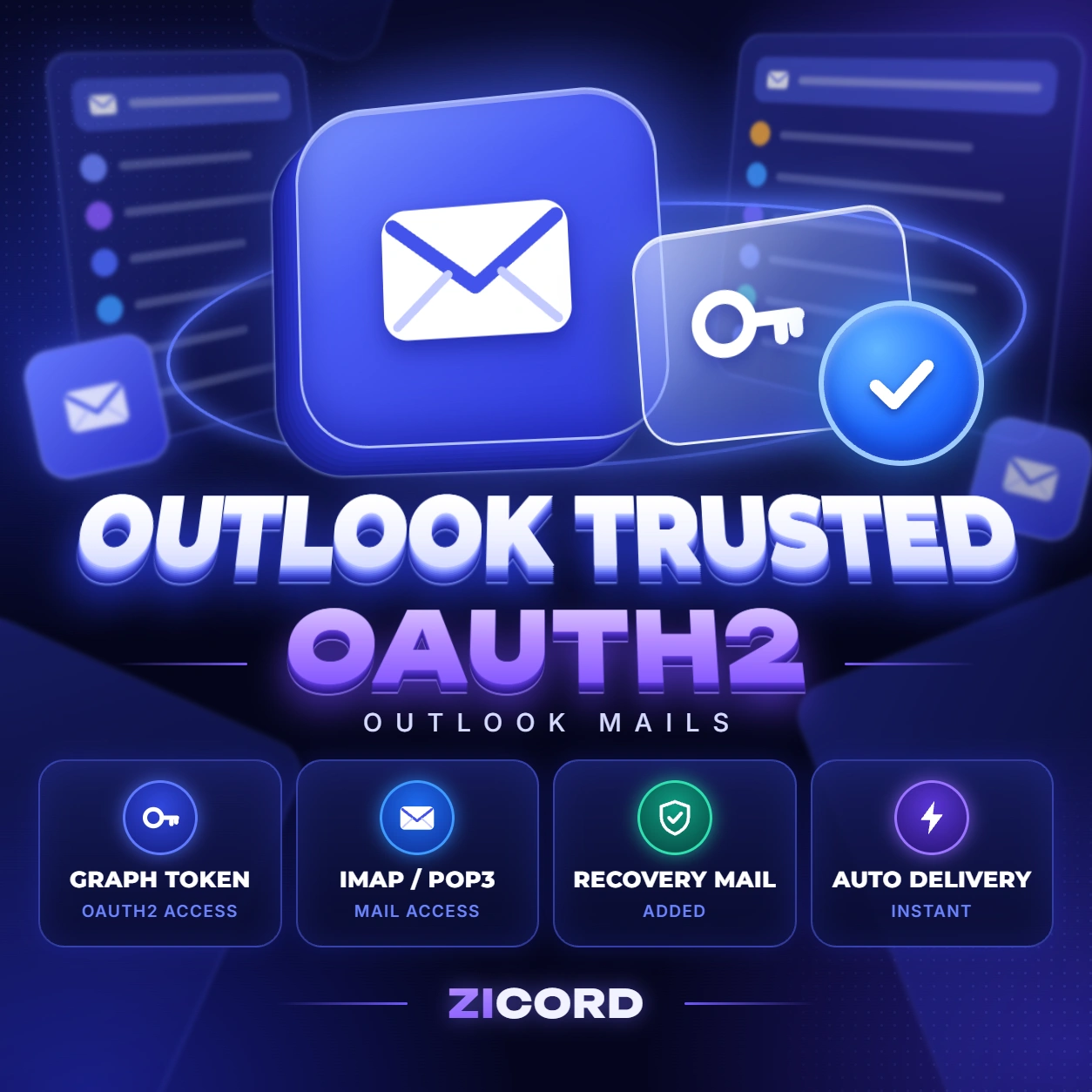
Our Outlook Trusted OAuth2 accounts are built for buyers who run several inboxes at once. The delivery line contains the credentials you need to start working immediately. The format is mail|password|refresh_token|client_id|recovery_mail|recovery_password.
That means each account ships with full Graph details, which is what makes it a trusted OAuth2 account. Once the refresh token and client ID are in place, the account works over IMAP, POP3 and the Microsoft Graph API. The recovery mail is already added on our side, so you are not starting from a bare login.
One thing to know up front: this product does not work with Discord. Do not buy it planning to use the addresses for that. Because of that limit, the accounts are excluded from the replacement policy if a Discord-related issue appears after delivery.
Before You Start: What You Need for Multi Accounting
Running multiple Outlook accounts reliably comes down to preparation more than skill. Gather these before you begin so the setup is smooth.
- A place to store credentials safely. A password manager works well because it keeps each mailbox's six fields together.
- Your preferred email client if you plan to use IMAP or POP3.
- Access to your own recovery inboxes if you intend to move the recovery address later.
- An understanding that these accounts are meant for your own workflows, testing and organization, not for anything that depends on publisher services you cannot control.
Most setup mistakes happen because buyers skip the storage step. It is easy to lose one of the six fields from the delivery line, and every field matters for a working login.
Step 1: Copy Your Full Delivery Line
Delivery is instant and automatic. As soon as your payment clears you receive the complete credential line for each account you bought.
Copy the entire line into your password manager before you touch anything else. Create one entry per account and label the fields as mail, password, refresh token, client ID, recovery mail and recovery password. This is the exact order the delivery uses, so mapping them one to one prevents confusion later.
Step 2: Turn On Two-Step Verification
Even though the account already has a recovery mail added, you should enable two-step verification yourself. This is the single most valuable step for keeping an account you work with day to day.
Sign in to the Outlook web portal with the mail and password from your delivery line. Go to security settings, find two-step verification, and set it up using the recovery mail provided. Use an authenticator app if you can, since it does not depend on another inbox.
This is where buyers most often go wrong. They assume the trusted account is already protected because recovery mail is added. It is not a guarantee of anything, and turning on 2FA is the difference between a hiccup you solve in minutes and an account you lose.
Step 3: Change the Password
After 2FA is on, change the password. Use a strong, unique password for this account. Do not reuse one from another site.
Changing the password does not break the OAuth2 setup. The refresh token keeps working through the Graph API because authentication is handled separately from the interactive login. This is standard behaviour for OAuth2 accounts, and it means your IMAP, POP3 and Graph connections keep functioning.
Step 4: Update the Recovery Mail if You Want To
The recovery mail on the account is there for you to manage. If you prefer your own recovery inbox, change it now while you have full access.
Move the recovery address to an inbox you control. Keep the recovery password from your delivery line saved somewhere safely, because you may need it during the change. Once your own recovery address is in place, ensure it is one you actually check, since Microsoft will use it for verification prompts.
Step 5: Connect to IMAP, POP3 or Graph
With the trust token in place you can connect the mailbox to your client of choice. The route depends on what you use:
- For IMAP and POP3, enter the mail, password and server settings in your client. The OAuth2 details sit behind the scenes and keep the connection authorised.
- For Graph API access, use the refresh token and client ID from your delivery line as the basis for your token refresh calls.
Each account uses its own refresh token and client ID. Do not reuse one client ID across several accounts expecting it to work, since each delivery pair is tied to its own mailbox.
Step 6: Verify the Account Works
Verification is simple and takes a minute. Send a test message to the account from another address you control, then read it back through your client or the Graph endpoint.
If you can send and receive a message through the connection you set up, the setup is complete. Log out and back in through your client to confirm the OAuth2 token refreshes correctly. A login that persists across a sign-out and sign-in is the sign of a healthy configuration.
Terms of Service Limits You Must Know
Account sales and account sharing violate the terms of service of most publishers, Microsoft included. Using these accounts can result in suspension or permanent loss of the account and the goods inside it. Treat that risk as part of the territory when you work with purchased accounts for multi accounting.
We check every account before it is sold, but publisher actions after delivery are outside our control. If an account does not work at delivery, we replace it when you send us a video recording that shows the whole process, from the purchase to trying the account. We cannot replace accounts without that recording. Accounts that Microsoft disables after delivery, or where it revokes a promo, are not covered.
To request a replacement, message us on Discord or Telegram with your order ID, the email you used at checkout, the video from buying to trying the account, and a short description of the problem. All sales are final and no refunds are issued, so a clear recording at the point of delivery is your best protection.
If the Account Does Not Work
Start with the recording. Capture the purchase and the failed attempt in one video before you change anything. Without that, a replacement request cannot be processed.
Then check the obvious causes: a field pasted in the wrong order, an extra space in the password, or a client that rejects the OAuth2 trust for reasons the account itself cannot fix. Re-paste the credentials direct from your saved entry, then try again with your recording already saved on the timeline.
When you are ready to scale your operation, browse our Hotmail and Outlook services to add accounts at the delivery standard that suits you.